
Widgets
Reach users inside your product
10+ ways to display updates in your app. Pick the format that fits your product. Target specific user segments. Push critical updates with boosters.
Try them live
10+ display modes for every situation
Modal
A centered overlay for important announcements that demand full attention.
Sidebar
A slide-out panel that lets users browse updates without leaving their workflow.
Popup
A lightweight popover attached to any element — a notification bell, badge, or custom trigger.
Toaster
A toast notification that appears briefly at the bottom of the screen.
Snackbar
A persistent notification bar at the top or bottom of the page.
Embed
A fully embedded changelog inside any page of your product.
Float
A floating button that opens your updates feed with one click.
Drawer
A slide-in drawer for browsing updates at the edge of the screen.
Count Badge
A notification badge showing unread update counts on any element.
Line
A compact inline trigger that fits naturally into your navigation.
Boosters
Boost your changelog posts so more users see them
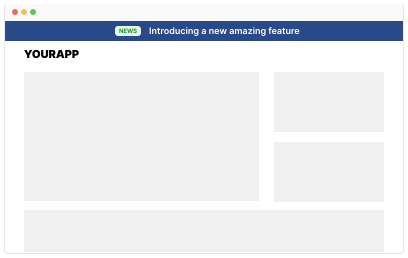
Boosters are in-app notifications that amplify your changelog. When you publish a post, use a booster to send a widget badge, email, or in-app message — so critical updates don't get missed. Choose pop-up, bar, or modal to match the moment.
- Pop-up booster — attention-grabbing overlay for launches and big updates
- Bar booster — top or bottom bar with optional countdown for time-sensitive news
- Modal booster — centered dialog with rich content for detailed announcements
Targeting
Show the right update to the right user
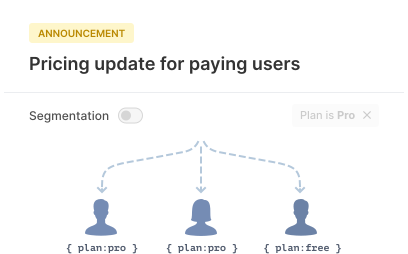
Combine any widget type with segmentation. Show enterprise features to enterprise users. Show onboarding tips to new signups. Target by role, plan, location, or any custom property.
One script tag. 5 minutes.
Add a script tag to your HTML, or use our React, Vue, Angular, or WordPress component. SDKs for iOS, React Native, and Flutter.
Frequently asked questions
How many widget display modes does AnnounceKit offer?
AnnounceKit offers 10+ widget display modes including modal, sidebar, popup, toaster, snackbar, embed, float, drawer, count badge, and line. Each mode is designed for a different use case — from lightweight notifications to full-attention announcements.
What are AnnounceKit boosters?
Boosters boost your changelog posts so more users see them. When you publish a post, you can add a widget badge, email boost, or in-app message. There are three booster types: pop-up, bar, and modal. Use them to increase visibility for product launches, breaking changes, or any update that shouldn't be missed.
How do I install AnnounceKit widgets?
Add a single script tag to your HTML, or use an official component for React, Vue, Angular, or WordPress. Mobile SDKs are available for iOS, React Native, and Flutter. Setup typically takes about 5 minutes.
Can I show different updates to different user segments in widgets?
Yes. AnnounceKit supports audience segmentation by role, plan, location, or any custom property. You can show different posts and widget content to different user segments so each user sees only the updates relevant to them.
Does AnnounceKit support React, Vue, and Angular?
Yes. AnnounceKit provides official components for React, Vue, and Angular, plus a vanilla JavaScript script that works with any framework. You can also use the same widget on WordPress or in mobile apps via iOS, React Native, or Flutter SDKs.
Can I customize the design of AnnounceKit widgets?
Yes. You can customize colors, typography, and layout with the Theme Designer in the dashboard. For full control, use custom CSS and JavaScript. Enterprise plans support full white-label and removal of AnnounceKit branding.
Do AnnounceKit widgets work in mobile apps?
Yes. Native SDKs are available for iOS, React Native, and Flutter. You get the same display modes (modal, sidebar, badge, etc.) and segmentation inside your mobile app, with native performance.
How do I track who saw my in-app announcements?
AnnounceKit records views and reads per user when you pass a user ID. You can see per-post analytics (views, reads, reactions) in the dashboard and filter by segment. Data can be sent to Google Analytics, Segment, or your own tools via webhooks.
Can I use multiple widget types on the same page?
Yes. You can load multiple widgets on one page — for example a count badge in the header and an embed changelog in a help section. Each widget can use the same or different display modes and targeting rules.
Do AnnounceKit widgets support multiple languages?
Yes. You can publish posts in multiple languages and the widget will show the right version based on the user's language or a property you pass. The widget UI (labels, buttons) can also be localized.
When should I use a booster instead of a regular widget?
Use boosters when you publish a changelog post that must be seen — product launches, breaking changes, compliance notices, or time-sensitive offers. You choose pop-up, bar, or modal; users get a badge, email, or in-app message. Regular widgets (badge, sidebar, toaster) are for ongoing discovery; boosters give that post extra reach.
What is the difference between embed and popup widgets?
Embed widgets place the full changelog inside a container on your page, so users stay in context. Popup (and modal/sidebar) widgets open on user action (e.g. clicking a badge). Use embed for a dedicated updates or help page; use popup for in-context discovery.